# Storage Panel
Source: https://inspectorlab.dev/panels-storage
> For the complete documentation index, see [llms.txt](https://inspectorlab.dev/llms.txt).
# Storage Panel
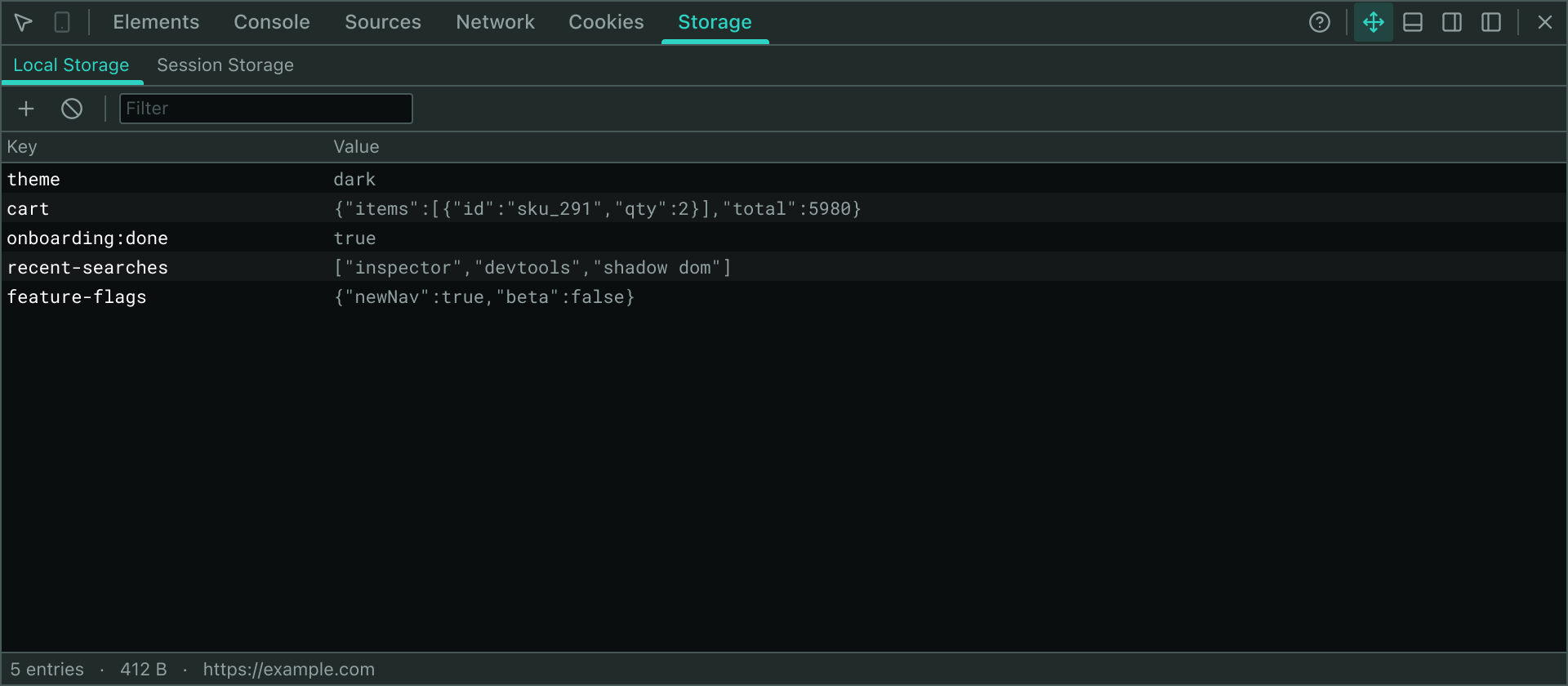
The **Storage Panel** gives you direct access to both Local Storage and Session Storage for the current page—an essential tool for debugging web applications that rely on client-side persistence. Looking for cookies? They have their own [Cookies Panel](/panels-cookies).
 ## Key Features
- **Dual Storage Areas**: Switch between Local Storage and Session Storage using tabs at the top of the panel
- **Direct Access**: The inspector shares the page's origin, so storage is read and written directly without any background communication or extra permissions
- **In-Place Editing**: Double-click any cell to edit it, just like in Chrome DevTools
- **Add & Remove Entries**: Use the toolbar buttons to create new entries or clear the entire storage area
- **Search & Filter**: Filter entries by key or value in real time
- **Size Tracking**: The status bar displays the total number of entries and their combined byte size
## How It Works
Storage data is accessed through `window.localStorage` and `window.sessionStorage`. Since the injected inspector shares the page's origin, no cross-origin communication is required. Changes are applied immediately to the page's storage.
## Editing Operations
| Operation | How |
|-----------|-----|
| Edit a key | Double-click the Key cell to rename an entry |
| Edit a value | Double-click the Value cell to modify it |
| Delete an entry | Click the X icon in the Actions column |
| Add an entry | Click the + button in the toolbar and fill in the key and value |
| Clear all | Click the Ban icon to remove all entries in the current storage area |
| Refresh | Click the Refresh button to re-read storage after external changes |
## Switching Storage Areas
1. Click the **Local Storage** or **Session Storage** tab
2. The table instantly refreshes to show entries from the selected area
## Error Handling
If a write operation fails—for example, if the storage quota is exceeded or the page has blocked site data—an error message appears in a red bar below the toolbar. The operation is automatically retried after each action.
If storage access throws an error (e.g., the page has blocked site data), the panel displays "Storage is not accessible on this page" and editing operations are disabled.
The panel respects the page's same-origin policy. Storage is accessed directly without any special background communication, making it as reliable and immediate as inspecting it from the browser console.
View, edit, add, and delete cookies with full access to all cookie attributes.
Understand how Inspector Lab handles sensitive data like cookies and storage.
## Key Features
- **Dual Storage Areas**: Switch between Local Storage and Session Storage using tabs at the top of the panel
- **Direct Access**: The inspector shares the page's origin, so storage is read and written directly without any background communication or extra permissions
- **In-Place Editing**: Double-click any cell to edit it, just like in Chrome DevTools
- **Add & Remove Entries**: Use the toolbar buttons to create new entries or clear the entire storage area
- **Search & Filter**: Filter entries by key or value in real time
- **Size Tracking**: The status bar displays the total number of entries and their combined byte size
## How It Works
Storage data is accessed through `window.localStorage` and `window.sessionStorage`. Since the injected inspector shares the page's origin, no cross-origin communication is required. Changes are applied immediately to the page's storage.
## Editing Operations
| Operation | How |
|-----------|-----|
| Edit a key | Double-click the Key cell to rename an entry |
| Edit a value | Double-click the Value cell to modify it |
| Delete an entry | Click the X icon in the Actions column |
| Add an entry | Click the + button in the toolbar and fill in the key and value |
| Clear all | Click the Ban icon to remove all entries in the current storage area |
| Refresh | Click the Refresh button to re-read storage after external changes |
## Switching Storage Areas
1. Click the **Local Storage** or **Session Storage** tab
2. The table instantly refreshes to show entries from the selected area
## Error Handling
If a write operation fails—for example, if the storage quota is exceeded or the page has blocked site data—an error message appears in a red bar below the toolbar. The operation is automatically retried after each action.
If storage access throws an error (e.g., the page has blocked site data), the panel displays "Storage is not accessible on this page" and editing operations are disabled.
The panel respects the page's same-origin policy. Storage is accessed directly without any special background communication, making it as reliable and immediate as inspecting it from the browser console.
View, edit, add, and delete cookies with full access to all cookie attributes.
Understand how Inspector Lab handles sensitive data like cookies and storage.