

Cookies Panel
The Cookies Panel displays and manages cookies with full access to all cookie attributes, including HttpOnly and Secure flags. For local and session storage, see the Storage Panel.
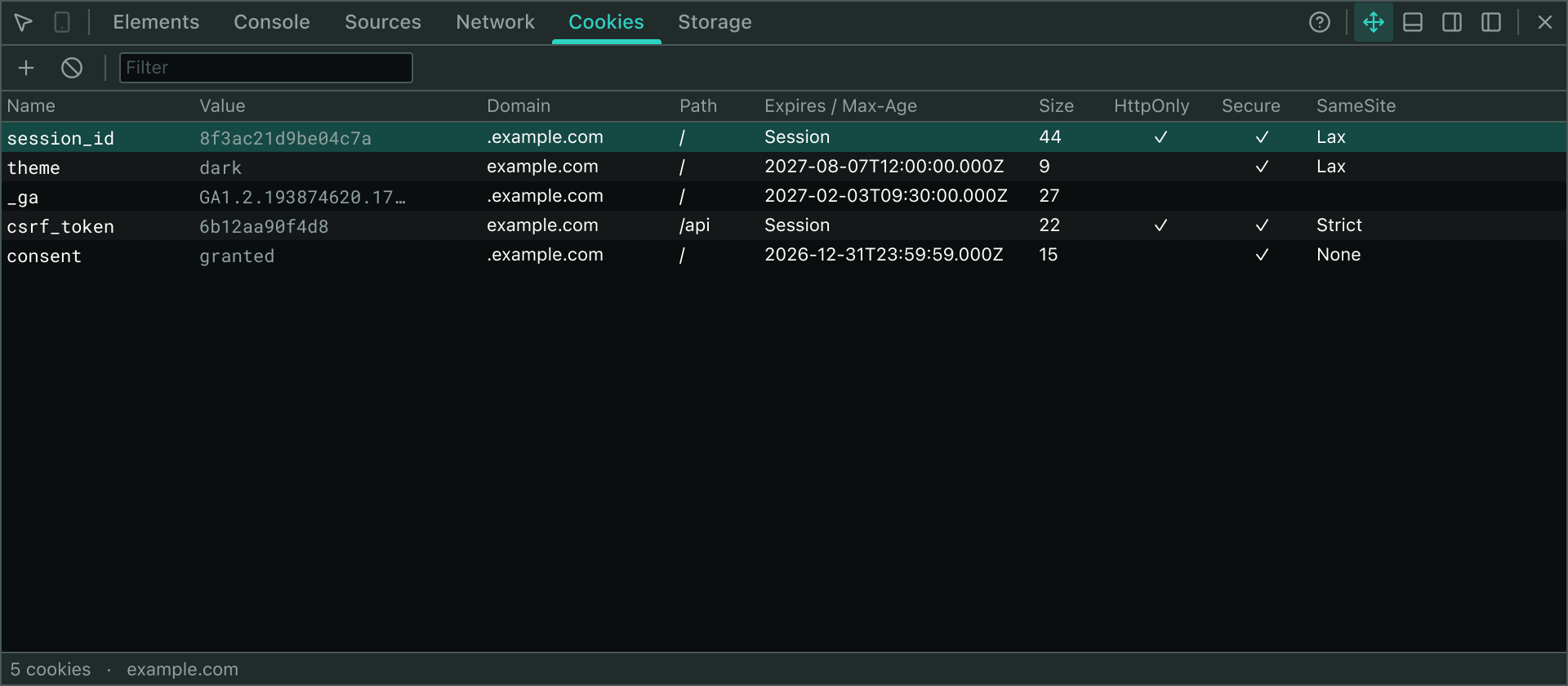
Key Features
- Two Data Sources: Read cookies either from the full Chrome cookie store (requires permission) or directly from
document.cookieas a fallback - Comprehensive Columns: View and edit Name, Value, Domain, Path, Expires/Max-Age, Size, HttpOnly, Secure, and SameSite
- Scope Selection: Switch between "All" cookies (requires all-sites permission) and "This site" cookies (per-site permission)
- Flag Toggling: Double-click HttpOnly or Secure cells to toggle these flags instantly
- Flexible Expiry: Edit expiration dates using ISO format or type "Session" for session cookies
- Search & Filter: Filter cookies by name, value, or domain
- Add & Remove: Create new cookies or delete existing ones via the toolbar
Permission Model
The panel reads from chrome.cookies and requires Chrome's all-sites permission. This grants access to every cookie in your profile across all domains. Chrome will warn you about this broad permission when you enable it.
The panel reads from chrome.cookies with a single-site host permission. Chrome prompts once and remembers the grant for the current domain only. This is the recommended approach for privacy-conscious users.
If neither permission is granted, the panel falls back to reading document.cookie. This shows only what the page's own scripts can access—names and values only. HttpOnly cookies are not listed, and Domain, Path, Expires, and flag columns show as unknown.
Editing Operations
| Operation | How |
|---|---|
| Edit Name | Double-click the Name cell to rename a cookie |
| Edit Value | Double-click the Value cell to change it |
| Edit Domain | Double-click the Domain cell (full store only) |
| Edit Path | Double-click the Path cell (full store only) |
| Edit Expiry | Double-click the Expires/Max-Age cell; use ISO date format or "Session" |
| Toggle HttpOnly | Double-click the HttpOnly cell to enable/disable (full store only) |
| Toggle Secure | Double-click the Secure cell to enable/disable |
| Edit SameSite | Double-click the SameSite cell; enter "Strict", "Lax", "None", or leave blank |
| Delete | Click the X icon in the Actions column |
| Add | Click the + button and fill in Name and Value; other fields default to session, host-only, path "/" |
| Clear All | Click the Ban icon to delete every cookie this site can see |
Fallback Mode (document.cookie)
When the inspector falls back to reading document.cookie, a note appears explaining the limitations:
- HttpOnly cookies are not visible — by design, they cannot be accessed from JavaScript
- Partial data — Domain, Path, Expires, and flag columns show "—" because
document.cookieonly reveals names and values - No editing of HttpOnly or flags — those require the full
chrome.cookiesAPI, accessed through the extension background - Path ambiguity — if multiple cookies share the same name at different paths, edits may not target the row you intended; relaunch the inspector to use the full API
Cookies created from the page-fallback mode are subject to the browser's validation rules. For example:
- Secure cookies require HTTPS — the browser will reject a Secure cookie on an http:// page
- Domain cookies outside your site — the browser will reject a cookie whose Domain is not a parent of the current host
- SameSite=None requires Secure — the browser enforces this pairing automatically
SameSite Attribute Values
| Value | Meaning |
|---|---|
| (empty) | Unspecified; the browser may default to Lax in future versions |
| Strict | Cookie sent only in same-site requests |
| Lax | Cookie sent in top-level navigations and same-site requests |
| None | Cookie sent in all requests (requires Secure flag) |
Size Calculation
The Size column and status bar report the combined byte length of the cookie's name and value only—not headers, domain, path, or flags. This matches the storage overhead of the cookie in the browser's cookie jar.
Error Handling
Failed operations display an error message in a red bar below the toolbar:
- "The cookie could not be saved — storage may be full" or other backend errors when writing
- "The cookie could not be deleted" if deletion fails
- "SameSite must be Strict, Lax, None, or empty" if you enter an invalid value
- 'Use an ISO date like 2027-01-01T00:00:00Z, or "Session"' if the expiry format is unrecognized
Cookies are listed in alphabetical order by domain and then by name, making it easier to find related cookies.
Common Workflows
Grant Permission for the First Time
- Open the Cookies panel
- Click the Allow cookie access button in the access prompt
- Accept the browser permission dialog
- The panel will re-load with full access to cookies
Create a Session Cookie
- Click the + button in the Cookies toolbar
- Enter a Name and Value
- Press Enter or click outside the row
- The cookie is set to the current hostname, path
/, and session-only by default
Delete Multiple Cookies Matching a Pattern
- Use the Filter field to narrow the list to cookies you want to remove
- Click the X button on each cookie, or
- Click Clear to delete all visible cookies at once (clears the entire current site, not just filtered results)