

Elements Panel
The Elements Panel provides a fast, interactive interface for inspecting and editing the live DOM of any page—including HTML, SVG, and XML documents. It shows the document tree (excluding the inspector’s injected nodes), supports deep copy and inline editing (HTML and SVG), and offers advanced features like forced pseudo-state display, attribute capping, stateful searching, and robust behavior across document types.
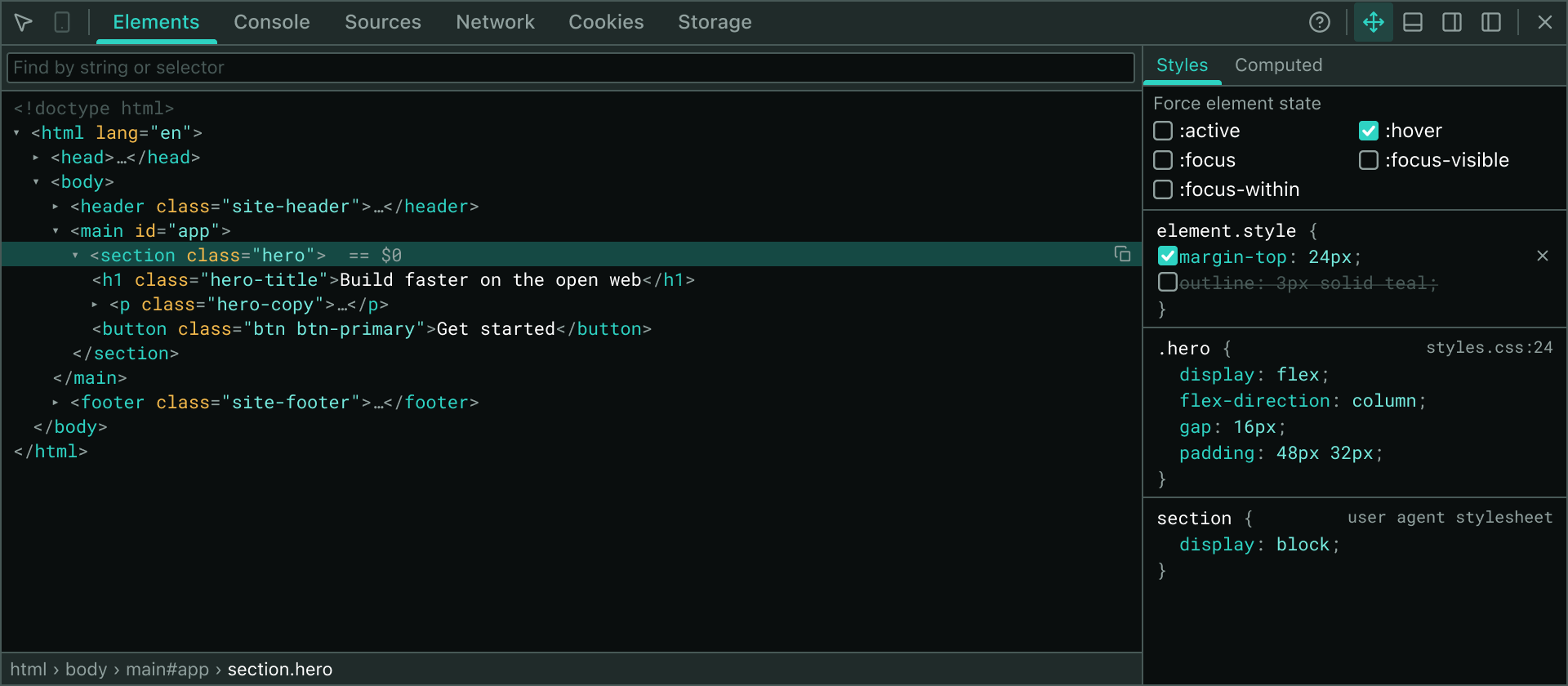
DOM Tree
Structure and Navigation
The panel renders the page’s DOM from the root, with collapsible/expandable nodes for elements with children. Features include:
- Twisty icon — Shows if an element has children and lets you expand/collapse them.
- Tag name — Syntax-highlighted (mono).
- Attributes — Displayed inline; individual attribute values are elided at 60 characters for visibility and to avoid overlong/obscured rows. This applies to all elements, including SVG nodes, and prevents tree noise from e.g.,
<svg path>or<input value="...">. - Inline text — Leaf elements (with no element children) show their text content on the row, whitespace collapsed.
- Copy button — Revealed on hover or keyboard focus, always at the right edge; copies the element’s current outerHTML, stripped of the inspector’s overlays and injected nodes (see below).
Each element is indented by 12px per depth level. For performance, only the first 300 child elements per node are rendered; if a node has more children, an overflow row appears showing how many are hidden, allowing you to search for deeply nested items without freezing the UI.
Special Handling
- Void elements: HTML's voids—
<img>,<input>,<br>, etc.—appear without a closing tag. SVG and XML elements always render conventionally, regardless of possible self-closing semantics in their DTD. - Inspector-injected nodes: The UI always omits inspector overlays, highlight boxes, and style injection nodes (
inspector-lab-extension-root, highlight overlays,<style>for forced state). This guarantees the tree view always reflects the user page, not any diagnostic artifacts injected by the panel.
Selection and Highlighting
- Clicking a row selects the element; the row uses a blue highlight if focused, or neutral gray when blurred.
- Hovering any row projects a highlight overlay onto the real page using a fixed/absolute invisible div, showing the bounds of the element (including SVG).
- The breadcrumb bar below the tree displays the full ancestor chain of the selection. Clicking any ancestor jumps you to that element in the tree and on the page.
Editing
You can edit:
- Tag name: Swap to a different valid tag; invalid substitutions are rejected and reset.
- Attribute name/value: Edit either in place, or tab to add new attributes. Extra-long values show as elided, but editing opens the full string.
- Text: Inline text nodes (when no element children are present) are editable in place.
Edits instantly affect the live DOM. Use Enter to save, Esc to cancel, Tab/Shift+Tab to move between fields. For all edits, syntax highlighting is preserved during editing for context.
Copy Element Functionality
The per-row copy button copies that element's outerHTML to the clipboard. The process:
- Serializes a deep clone of the element, so the original DOM is unaffected and can’t be changed by mistakes or scripts.
- Strips any inspector-injected layers (
inspector-lab-extension-root, highlight overlays, state-style overlay, or SVG<foreignObject>). - Works seamlessly with both HTML and SVG/XML elements, ensuring copied markup is standards-compliant and inspector detritus is never included.
- The button gives a 1.5 second checkmark feedback after copying.
- Uses the native Clipboard API when available, otherwise falls back to the trusty hidden-textarea and
execCommand('copy')(with correct overlay-root placement so it works in SVG/XML overlays too).
Attributes and Large Node Handling
- Attribute values shown in the tree are elided beyond 60 characters. This prevents gigantic attributes from breaking the layout (common with inlined data URIs, huge JSON, and noisy SVG nodes).
- For nodes with a massive number of children, only the first 300 are shown per node; a "+" row summarizes the overflow.
Styles and Live Style Editing
Live Inline Style Editing
- Inline style editing is supported for both HTML and SVG elements. The editor presents a compact, in-row editable field for each declaration.
- Both property names and values are editable. The color and syntax highlighting remain intact while editing.
- Edits to the
styleattribute (for HTML and SVG) are immediately reflected in the DOM and UI. - If you add
!importantin an inline edit, it is respected in the cascade, and the inspector visually updates cascade status. - Errors or invalid CSS show a message inline below the edit.
- Stylesheets, constructable sheets, and adopted sheets are all supported.
Force Element State (Pseudo-Class Emulation)
- The panel features a "Force element state" UI for five pseudo-states:
:active,:hover,:focus,:focus-visible,:focus-within. - Checking a box clones every page-authored rule containing that pseudo, rewriting matching selectors to be forced for just the selected element using a generated exact path (
:is(html > body > div:nth-child(2) > ...)). These forced rules are injected into a constructable stylesheet that is invisible to the page and CSP-immune, keeping the main DOM untouched. - The forced state is only visual (CSS): the real state doesn’t change, so user scripts still see the original state.
- On browsers that cannot adopt a constructable stylesheet to the page, the system falls back to a
<style>node with a known ID, which is filtered out of the tree and never shown as an editable page rule.
Forcing a pseudo-state visually applies CSS as if the state is active. It does not spoof real state: scripted reads (e.g., el.matches(':hover')) still return false while forced.
- All output is injected in a single sheet owned by the inspector, and page-authored pseudo classes are emitted both under the real pseudo and (while forced) bare so forced state always wins.
Search and Selection
- The search bar supports:
- CSS selector: If valid, used directly for matching.
- Tag name: Partial matching, case-insensitive.
- Attribute: Match on attribute names or values.
- Text content: Matches on collapsed/visible inline text.
- Search stops at 500 matches for performance, and displays match count.
- The tree scrolls to and highlights the first result.
- The element picker mode allows you to click any page element (including deep SVG) and select it directly.
SVG, XML, and Document-Type Handling
- The panel detects document type:
- For standard HTML, overlays and highlights are appended to
document.documentElement. - For SVG/XML, a special inspector
<foreignObject>overlay layer is created as an injection point, since HTML nodes outside a<foreignObject>are never rendered inside SVG. All overlays, highlights, the picker, and interactive controls are routed there, so the UI displays on every valid document.
- For standard HTML, overlays and highlights are appended to
- All features (editing, selecting, copying, searching, style editing) work fully inside SVG and XML documents.
- Large SVG nodes with lengthy attribute or inline style values are handled with the same attribute capping and editing UI as HTML.
Limitations and Behavior
Only the first 300 children per node are shown. Nodes with more children show an overflow row to keep the UI fast. Search and navigation always remain available for deep nodes.
- Search limit: Stops collecting at 500 matches for responsiveness.
- Attribute display cap: Each attribute value is capped at 60 characters in the tree view (full value shown if edited).
- Copy feedback: A checkmark is shown on successful copy for 1.5s.
- User-agent/CORS stylesheets: Not shown in rules, but computed styles are always correct and any unreadable sheets are counted (see Styles documentation).
- Cascade analysis cap: Style rule resolution stops after 10,000 visited rules per element in Styles, with a note in the pane.
- Pseudo-states: Uncertain or nested pseudo-class declarations may not be fully reflected; the UI marks ambiguous cases as "uncertain."
- SVG/XML: Fully supported—panel overlays, live editing, and selection always work even for non-HTML roots.
Clipboard and Compatibility
- Clipboard: Modern Clipboard API is preferred; legacy fallback ensures copy works over
http://andfile://too. - Overlay root logic: Ensures overlay chrome and hidden controls (e.g., copy helper textarea) always render somewhere visible and correct in all document types.
This reflects the complete, current feature set and technical guarantees of the Elements panel—including DOM display and navigation, inspector node filtering, SVG/XML compatibility, copy/clipboard handling, live style editing, attribute and child caps, force-state logic, and robust search and selection on diverse documents.